
Key Takaways
Cloud Semantic Modeler Core Features
1. Modern browser-based interface integrated directly into Oracle Analytics Cloud.
2. Supports physical, logical, and presentation layer diagramming for full visibility.
3. Native Git integration for collaborative, multi-user development and versioning.
4. JSON-based Semantic Model Markup Language (SMML) for code-first modeling.
5. Integrated Lineage Viewer to visualize data flow and dependencies.
6. Built-in expression editor with real-time validation for measures and calculations.
7. Direct deployment to the server without manual RPD file generation or uploads.
Quick summary
• Oracle Analytics Cloud Semantic Modeler is a modern web-based tool for creating governed semantic models that bridge raw data and business users.
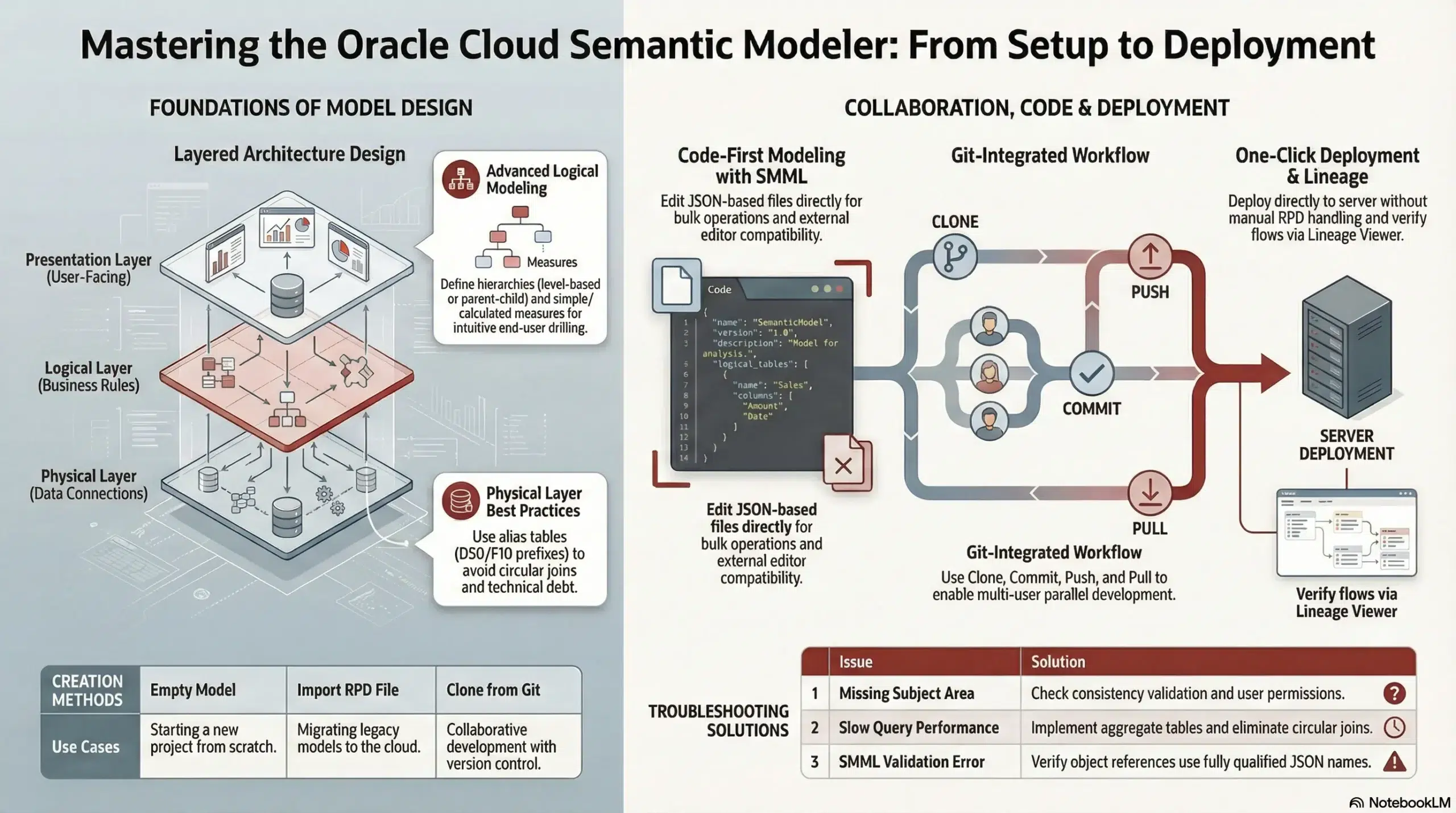
• First the tool abstracts complex data into three distinct layers including physical logical and presentation to ensure metrics-oriented accessibility.
• Then it leverages native Git integration and the JSON-based SMML format to enable seamless multi-user collaboration and code-first development workflows.
• Finally developers can validate calculations and deploy models directly to the server with a single click eliminating manual RPD file handling.
1. Introduction
Oracle Analytics Cloud Semantic Modeler is a modern, browser-based modeling tool that enables developers and data architects to create sophisticated semantic models for enterprise analytics. It provides a translation layer between business applications and underlying data structures, making complex data accessible to business users through intuitive, business-friendly interfaces.
1.1 What is a Semantic Model?
A semantic model is a metadata layer that abstracts physical database objects into logical business dimensions. It serves multiple critical functions:
- Acts as a translation layer between applications and data structures
- Exposes a metrics-oriented data layer accessible via APIs and visualizations
- Masks complexity of underlying data models from business users
- Enables querying data in the same intuitive way users think about their business
- Provides centralized governance, security, and business logic
A properly designed semantic model meets stakeholder business requirements without requiring them to understand the underlying data structure complexity.
1.2 Key Features
Semantic Modeler offers several advantages over traditional modeling tools:
- Modern browser-based interface integrated within Oracle Analytics Cloud
- Complete semantic modeling capabilities including physical, logical, and presentation diagrams
- Tight integration with Git-based platforms for version control and collaborative development
- Semantic Model Markup Language (SMML) based on JSON for code-first development
- Built-in lineage viewer showing data flow across all layers
- Automatic RPD file generation for deployment
- Expression editor with validation for calculations
Before getting started and go into details in that article, check our comprehenssive video explanation
2. Getting Started
2.1 Accessing Semantic Modeler
To access Semantic Modeler in Oracle Analytics Cloud:
- Navigate to the OAC Home page
- Click the Create menu
- Select Semantic Model
- Provide a name for your semantic model
Note: Ensure you have the BI Data Model Author application role or service administrator credentials to create semantic models.
2.2 Creating Your First Semantic Model
When creating a new semantic model, you have four options:
| Option | Description |
| Empty Model | Start with a blank semantic model and build from scratch |
| Import RPD File | Import an exported semantic model (.rpd) or archived model (.zip) from your computer |
| Load from Analytics Server | Import the currently deployed semantic model from Oracle Analytics Server for troubleshooting or modifications |
| Clone from Git Repository | Clone an existing semantic model from a Git repository using HTTPS or SSH connection |
3. Semantic Model Architecture
Oracle Analytics semantic models consist of three distinct layers that work together to transform raw data into business-friendly information. Understanding this architecture is fundamental to building effective semantic models.
3.1 Physical Layer
The Physical Layer is the foundation of the semantic model. It defines the objects and relationships that the Oracle Analytics query engine needs to write native queries against each physical data source.
Key Components:
- Physical Databases: Container objects representing data source connections
- Schemas: Organizational structure within physical databases
- Physical Tables: Actual database tables imported from data sources
- Alias Tables: Abstraction layer that obfuscates actual database tables from end users
- Physical Joins: Define relationships between physical tables
- Connection Pools: Contain connection information, timeout settings, and connectivity parameters
Best Practices:
- Always use alias tables rather than exposing physical tables directly
- Eliminate circular joins to improve query performance
- Define foreign key relationships when importing tables for automatic join creation
- Use meaningful naming conventions (e.g., D50_ prefix for dimension tables, F10_ for fact tables)
3.2 Logical Layer
The Logical Layer (also called the Business Model and Mapping layer) is an abstraction of the physical layer. This is where you define business logic, calculations, and the way data should be understood from a business perspective.
Key Components:
- Business Models: Top-level containers representing subject areas
- Logical Tables: Business entities such as customers, products, orders
- Logical Columns: Attributes and measures visible to users
- Logical Joins: Define relationships between logical tables
- Hierarchies: Define drill-down paths (e.g., Year > Quarter > Month)
- Measures: Aggregated calculations with rules like SUM, AVG, MIN, MAX
- Logical Table Sources: Map logical tables to physical sources
The logical layer enables powerful features like aggregate navigation, federation across multiple sources, and dimension conformance. At runtime, the Oracle Analytics query engine evaluates requests against the logical layer and determines the optimal physical queries needed.
Logical Fact vs. Dimension Tables:
- Fact Tables: Contain measures aggregated from facts, typically numeric data like revenue or quantity
- Dimension Tables: Contain descriptive attributes like customer name, product category, or time period
3.3 Presentation Layer
The Presentation Layer provides customized, secure, role-based views of the logical layer to end users. It adds an additional level of abstraction and controls what users see when building analyses and dashboards.
Key Components:
- Subject Areas: User-facing views of business models
- Presentation Tables: Folders organizing related columns
- Presentation Columns: User-visible columns with business-friendly names
Key Features:
- You can show fewer columns than exist in the logical layer
- Support for localized language translations
- Appropriate layer for setting user permissions and security
- After deployment, presentation layers appear as subject areas in Oracle Analytics
4. Building the Physical Layer
4.1 Setting Up Connections
Important: Connections are not defined within Semantic Modeler. They must be created separately from the OAC Home page using Create > Connection before using them in your semantic model.
Only connections with the System Connection field enabled will be available in Semantic Modeler. The Connections tab in Semantic Modeler displays all available system connections from your OAC instance.
4.2 Creating a Physical Database
To create a physical database:
- Navigate to the Physical Layer tab in Semantic Modeler
- Click Create Database
- Provide a descriptive name (e.g., MySampleSalesDatabase)
- Select your connection from the Connection Pool dropdown
- Configure timeout settings and database writeback options as needed
4.3 Importing Physical Tables
The most common way to populate the physical layer is by importing metadata from your data sources:
- In the Physical Layer, expand your database and schema
- Drag and drop tables from the connection panel on the left
- If foreign keys are defined in the source, joins are automatically created
- Many properties are configured automatically based on information gathered during import
4.4 Creating Alias Tables
Alias tables are essential for creating a clean abstraction layer:
- Right-click on a physical table
- Select Create Alias
- Provide a business-friendly name (e.g., D50_Customer for dimension tables)
- Use consistent naming conventions across your model
Warning: Semantic Modeler’s name uniqueness checker is case-sensitive, but downstream processing may ignore case. Ensure alias names differ by more than just capitalization to avoid conflicts.
4.5 Defining Physical Joins
Physical joins define how tables relate to each other:
- Click Show Physical Diagram for your database
- Select two tables and click Add Join
- Define the join condition (e.g., Customer_ID = Customer_ID)
- Specify join type (Inner, Left Outer, Right Outer, Full Outer)
Best Practice: Avoid circular joins. If you need different join paths from the same table, create multiple alias tables with separate joins.
5. Building the Logical Layer
5.1 Creating a Business Model
The business model is the top-level container in the logical layer:
- Navigate to the Logical Layer tab
- Click Create Business Model
- Provide a descriptive name (e.g., Sample Sales BM)
5.2 Creating Logical Tables
Logical tables represent business entities:
For Dimension Tables:
- Right-click your business model and select Create Logical Table
- Name it with a business-friendly name (e.g., D5 Customer)
- Drag columns from physical alias tables in the Physical Layer
- Set the Primary Key in the General tab
For Fact Tables:
- Create a logical fact table similarly
- Import measure columns (numeric values to be aggregated)
- Set aggregation rules (SUM, AVG, MIN, MAX) for each measure
5.3 Mapping Logical Table Sources
Logical table sources map logical tables to their physical sources:
- Open the logical table
- Click the Sources tab
- Add the corresponding physical alias table
- For fact tables, set Data Granularity by specifying dimensional levels
- You can map multiple physical sources to a single logical table for federation
5.4 Creating Logical Joins
Logical joins define business relationships between entities:
- Right-click a fact table and select Show Logical Diagram
- Drag dimension tables to the diagram
- Draw joins between fact and dimension tables
- The system automatically suggests dimensions that can be physically joined
5.5 Creating Hierarchies
Hierarchies enable drill-down analysis. Oracle Analytics supports several hierarchy types:
Level-Based Hierarchies:
- Open the dimension logical table
- Click the Hierarchy tab
- Select Level-Based from Hierarchy Type
- Add levels from highest to lowest (e.g., Year > Quarter > Month > Day)
- Assign keys and display columns for each level
Parent-Child Hierarchies:
- Select Parent-Child from Hierarchy Type
- Define Member Key (unique identifier for each member)
- Define Parent Key (references the parent member)
- Set Display Key for user-friendly names
- Useful for organizational hierarchies where depth varies
Ragged and Skipped-Level Hierarchies:
- Ragged: Not all branches go to the same depth (e.g., some locations have districts, others don’t)
- Skipped-Level: Some levels may not apply to certain branches
- Configure using level-based hierarchies with appropriate member configurations
5.6 Creating Measures and Calculations
Measures are the quantitative values users analyze:
Simple Measures:
- Drag measure columns from physical sources into your logical fact table
- Set the Aggregation Rule (SUM, AVG, COUNT, MIN, MAX)
- Example: Revenue with SUM aggregation
Calculated Measures:
- Right-click the logical table and select New Column
- Click the Expression Editor
- Build calculations using available functions and columns
- Example: Profit Margin = (Revenue – Cost) / Revenue * 100
- The expression editor validates calculations in real-time
Level-Based Measures:
- Create measures that aggregate at specific dimensional levels
- Useful for period-over-period comparisons
- Example: Year-to-Date Revenue calculated at the year level
Share Measures:
- Calculate a value’s percentage of the total
- Example: Product Revenue / Total Revenue for market share analysis
5.7 Aggregate Tables
Aggregate tables improve query performance by pre-calculating summaries:
- Create physical aggregate tables in your data warehouse
- Import them into the Physical Layer
- Add them as additional sources to your logical fact table
- Set the appropriate data granularity level
- The query engine automatically selects the optimal aggregate for each query
6. Building the Presentation Layer
6.1 Creating Subject Areas
Subject areas are what end users see when building analyses:
- Navigate to the Presentation Layer tab
- Click Create Subject Area
- Provide a user-friendly name (e.g., Sales Analysis)
- The subject area becomes available in Oracle Analytics after deployment
6.2 Adding Presentation Tables
Presentation tables organize columns into logical folders:
- Drag logical tables from the Logical Layer into your subject area
- Rename them to business-friendly names if needed
- You can include only a subset of logical tables
- Organize presentation tables to match how users think about data
6.3 Configuring Presentation Columns
Control which columns users see and how they’re named:
- Presentation columns map to logical columns
- You can expose fewer columns than exist in the logical layer
- Rename columns to match business terminology
- Hide technical columns that users don’t need
6.4 Setting Permissions
The presentation layer is the appropriate place to configure security:
- Set permissions at the subject area level
- Control access to specific presentation tables or columns
- Configure row-level security using data filters
- Create role-based views for different user groups
7. Working with SMML
7.1 What is SMML?
Semantic Model Markup Language (SMML) is a JSON-based modeling language for defining semantic models. It provides a human-readable, code-first alternative to using the graphical interface.
Key Benefits:
- Human-readable JSON format familiar to developers
- Each semantic model object is a separate file
- File names map directly to object names in the UI
- File granularity at table level reduces the number of files to manage
- Object references use fully qualified names
- Perfect for version control with Git
7.2 Accessing the SMML Editor
Semantic Modeler includes a built-in SMML editor:
- Right-click any object in any layer
- Select Open in SMML Editor
- A new tab opens with the JSON code for that object
- The editor includes syntax highlighting and validation
7.3 Editing SMML Code
You can edit semantic model objects directly in SMML:
- Open both the graphical designer and SMML editor for the same object
- Make changes in the SMML editor
- Press Ctrl+S or click the save icon
- Changes immediately reflect in the designer without refreshing
Example: You can change a column’s data type in SMML (which cannot be done in the graphical designer since data types are normally derived from physical sources).
7.4 SMML File Structure
When you export a semantic model or work with Git, you’ll see:
- Each table is a separate .json file
- Files are organized by layer (Physical, Logical, Presentation)
- Object references use fully qualified names (e.g., PhysicalDatabase.Schema.Table)
- The structure is documented in the SMML Schema Reference
7.5 Using External Editors
Developers can use their preferred text editors:
- Export the semantic model as a .mar (model archive) file
- Extract the JSON files
- Edit in VS Code, Sublime, or any text editor
- Re-import or commit to Git
- Useful for bulk operations and scripted metadata generation
8. Git Integration
8.1 Why Use Git with Semantic Models?
Git integration is one of Semantic Modeler’s most powerful features, addressing a long-standing challenge in Oracle Analytics development:
- Enable true multi-user collaborative development
- Multiple developers can work on the same model simultaneously
- Track all changes with full version history
- Branch for feature development without affecting production
- Review changes through pull requests
- Roll back to previous versions if needed
- Integrate with CI/CD pipelines
8.2 Setting Up Git Integration
To connect your semantic model to a Git repository:
Prerequisites:
- A Git repository (GitHub, GitLab, Bitbucket, etc.)
- Access credentials (personal access token or SSH key)
- Repository URL (HTTPS or SSH format)
Connection Steps:
- Open your semantic model in Semantic Modeler
- Click the Git menu
- Select Connect to Repository
- Enter the repository URL
- Provide authentication credentials
- Select the branch to work with
8.3 Git Operations in Semantic Modeler
Semantic Modeler supports common Git operations directly from the interface:
Clone:
- When creating a new semantic model, select Clone from Git Repository
- Provide repository URL and credentials
- The entire model is cloned locally for development
Commit:
- Make changes to your semantic model
- Select Git > Commit
- Review changed files
- Enter a commit message
- Commit to local repository
Push:
- After committing changes locally
- Select Git > Push
- Changes are uploaded to the remote repository
- Other developers can now pull your changes
Pull:
- Select Git > Pull
- Retrieves latest changes from remote repository
- Merges changes into your local model
- Resolve conflicts if necessary
Branch:
- Create new branches for feature development
- Switch between branches
- Merge branches when features are complete
- Isolate experimental changes from production
8.4 Collaborative Development Workflow
A typical multi-developer workflow:
- Developer A clones the repository and creates a feature branch
- Developer B clones the same repository and creates a different feature branch
- Both developers work independently on their branches
- Each commits and pushes changes to their respective branches
- Developer A creates a pull request for review
- After approval, Developer A’s changes merge to main
- Developer B pulls the latest main branch to get Developer A’s changes
- Developer B merges main into their feature branch
- This workflow supports dozens of developers working simultaneously
9. Deployment and Testing
9.1 Validating Your Semantic Model
Before deployment, validate your semantic model:
- Click the Check Consistency button
- Review any errors or warnings
- Fix issues before proceeding
- Common issues: missing joins, undefined hierarchies, incorrect aggregation rules
9.2 Deploying the Semantic Model
Deployment makes your semantic model available to users:
- Click the Deploy button
- The semantic model is automatically converted to an RPD file
- The RPD is deployed to Oracle Analytics Server
- Subject areas become available in Oracle Analytics
- No manual file upload required
Note: Unlike traditional RPD deployment, Semantic Modeler eliminates the need to generate and manually upload RPD files. Deployment happens with just a few clicks.
9.3 Testing Queries
After deployment, test your semantic model:
- Open Oracle Analytics
- Create a new workbook
- Select your subject area as the data source
- Build simple visualizations to verify data appears correctly
- Test hierarchies by drilling down
- Verify measures aggregate correctly
- Check calculated fields produce expected results
9.4 Using the Lineage Viewer
The lineage viewer helps troubleshoot and understand data flow:
- Right-click any object in any layer
- Select Show Lineage (or press Ctrl+Shift+L)
- View the complete data flow from physical to presentation layer
- See all dependencies and relationships
- Useful for impact analysis before making changes
9.5 Exporting the Semantic Model
You can export semantic models in multiple formats:
RPD File:
- Traditional repository file format
- Compatible with Model Administration Tool
- Useful for migration to older versions
Data Model Archive (.mar):
- Contains all SMML files
- Can be re-imported into Semantic Modeler
- Good for backup and archiving
Git Repository:
- Push to remote repository
- SMML files organized in directory structure
- Best for version control and collaboration
10. Best Practices
10.1 Naming Conventions
Consistent naming improves maintainability:
Physical Layer:
- Use prefixes: D50_ for dimension aliases, F10_ for fact aliases
- Keep technical accuracy in physical table names
- Example: D50_Customer, F10_Sales
Logical Layer:
- Use business-friendly names: D5 Customer, F1 Revenue
- Shorter prefixes than physical layer
- Focus on business meaning
Presentation Layer:
- Use natural language: Customer, Revenue, Product
- No technical prefixes
- Match business user terminology
10.2 Performance Optimization
- Create aggregate tables for frequently queried summaries
- Eliminate circular joins in the physical layer
- Use appropriate indexes on physical database tables
- Avoid SELECT statements in logical table sources when possible
- Set proper data granularity on fact table sources
- Use cache wisely for static or slowly-changing data
10.3 Model Design Principles
- Start with clear business requirements
- Design the logical layer to match how users think about data
- Keep the presentation layer simple and intuitive
- Document complex calculations and business rules
- Use consistent aggregation rules across related measures
- Plan for scalability from the beginning
10.4 Version Control Strategy
- Commit frequently with meaningful commit messages
- Use feature branches for new development
- Keep main branch stable and deployable
- Use pull requests for code review
- Tag releases for easy rollback
- Establish branching conventions for your team
10.5 Security and Governance
- Apply security at the presentation layer
- Use row-level security for data filtering
- Document security requirements and implementation
- Test security with different user roles
- Regularly audit access permissions
- Maintain clear data ownership and stewardship
11. Troubleshooting
11.1 Common Issues
| Issue | Solution |
| Duplicate column names after creating aliases | Name uniqueness checker is case-sensitive but downstream processing is not. Use distinct names beyond just capitalization differences. |
| Subject area not appearing after deployment | Check consistency validation. Ensure at least one presentation table exists in the subject area. Verify user permissions. |
| Incorrect aggregation results | Verify aggregation rules on measures. Check data granularity settings on fact table sources. Ensure hierarchies are properly defined. |
| Slow query performance | Create aggregate tables. Eliminate circular joins. Check for missing indexes on physical tables. Review query log for optimization opportunities. |
| Git push/pull failures | Verify credentials are current. Check network connectivity. Ensure repository URL is correct. Pull before pushing if remote has updates. |
| SMML validation errors | Check JSON syntax. Verify object references use fully qualified names. Review error message for line number. Use the built-in editor for validation. |
11.2 Getting Help
Resources for additional assistance:
- Oracle Documentation: docs.oracle.com/en/cloud/paas/analytics-cloud
- Oracle Analytics Community: community.oracle.com
- SMML Schema Reference for detailed syntax
- Oracle Support portal for technical issues
- Oracle Analytics blogs for tutorials and tips
12. Conclusion
Semantic Modeler represents a significant advancement in Oracle Analytics modeling capabilities. Its modern browser-based interface, Git integration, and SMML support make it a powerful tool for building enterprise-grade semantic models.
Key advantages over traditional approaches include:
- True multi-user collaborative development through Git
- Seamless deployment without manual RPD file management
- Code-first development option with SMML
- Integrated lineage viewer for data flow visualization
- Modern interface accessible from anywhere
- Full compatibility with existing RPD models
Whether you’re building new semantic models from scratch or migrating existing models, Semantic Modeler provides the tools and flexibility needed to create robust, scalable analytics solutions that meet your organization’s evolving needs.
By following the best practices outlined in this guide and leveraging Semantic Modeler’s powerful features, you can build semantic models that provide a solid foundation for enterprise analytics, enable business users to easily access and understand data, and support your organization’s data-driven decision making.
People Also Asked (FAQs)
1.What is the Semantic Modeler in Oracle Analytics Cloud?
Oracle Analytics Semantic Modeler is a modern, web-based tool integrated within Oracle Analytics Cloud for creating governed semantic models. It provides a bridge between raw data sources and business users, abstracting complex physical data into intuitive logical business views across physical, logical, and presentation layers.
2.How does Semantic Modeler differ from the Model Administration Tool?
Unlike the traditional Windows-based Model Administration Tool, Semantic Modeler is entirely browser-based and integrated into OAC. It supports code-first development via SMML (JSON) and offers native Git integration for multi-user collaboration, eliminating the need for manual RPD file uploads during the deployment process.
3.Can I import an existing RPD file into the Semantic Modeler?
Yes, you can import an existing .rpd file into Semantic Modeler. When creating a new model, you are presented with four options: starting with an empty model, importing an RPD file from your computer, loading the currently deployed model from the server, or cloning from a Git repository.
4.What is SMML in Oracle Analytics?
SMML (Semantic Model Markup Language) is a JSON-based language used to define semantic models within the tool. This format allows developers to work in a ‘code-first’ manner, enabling the use of external text editors and making the metadata more compatible with version control systems like Git.
5.How does Git integration work in Semantic Modeler?
Git integration in Semantic Modeler allows multiple developers to collaborate by connecting to repositories like GitHub or GitLab. Users can perform operations like clone, commit, push, pull, and branch management directly within the interface, facilitating version history and parallel development workflows for semantic models.
6.What are the three layers in an Oracle Analytics semantic model?
Oracle Analytics semantic models consist of the Physical Layer (data source definitions), the Logical Layer (business logic and mappings), and the Presentation Layer (user-facing subject areas). These layers work together to transform raw data into governed, business-friendly information for analysis.
7.Do I need a Windows machine to use Semantic Modeler?
No, because Semantic Modeler is a web-based component of Oracle Analytics Cloud, it can be accessed from any modern web browser on various operating systems. This is a major shift from the legacy Model Administration Tool, which required a local Windows installation.
8.Can multiple developers work on the same semantic model simultaneously?
Yes, native Git integration enables true multi-user development. Each developer can work in their own branch and merge changes back to the main branch. This allows for distributed development environments where team members can work on the same model without overwriting each other’s work.
9.Is Semantic Modeler compatible with Oracle Analytics Server?
Yes, while primarily highlighted for OAC, Semantic Modeler is also available for Oracle Analytics Server (OAS). It provides the same modern, browser-based experience for on-premises or private cloud deployments, serving as the next-generation replacement for the legacy Administration Tool.
10.What is the benefit of the Lineage Viewer in Semantic Modeler?
The Lineage Viewer provides a visual representation of the data flow from the physical data source through the logical transformation layer to the final presentation objects. This is crucial for impact analysis and troubleshooting, allowing developers to see all dependencies before making changes.