

Quick Summary:
Oracle Analytics Server Installation is a structured four-step process that begins with verifying system compatibility through the Oracle Certification Matrix and ends with a complete environment configuration. This guide provides a detailed roadmap for deploying OAS 2025 on Windows Server, covering the installation of Java 8, Oracle Database 19c, and Fusion Middleware 12.2.1.4.0 before running the final Configuration Assistant.
Oracle Analytics Server Installation and Configuration Steps:
1. Check the Certification Matrix for System Compatibility
- Currently Oracle Analytics Server is supported only on Linux and Windows Servers.
According to your platform/OS, you need to check the updated certification (compatibility) matrix provided by Oracle in the following URL:
Oracle Analytics Server Certification Matrix
Workshop Virtual Machine Server Specifications
- Binaries Location: C:\sources
- OS: Windows Server 2012 Standard R2 – 64 Bits
- Virtual Machine: VMWare – 2 Core
- Memory: 9 GB
- Host Name: OAS-Server
- Browser: Firefox
- Database: Oracle Enterprise 19c
- Fusion Middleware: 12.2.1.4.0
- Analytics Server: 2025
- JAVA_HOME: C:\Program Files\Java\jre1.8.0_341\bin
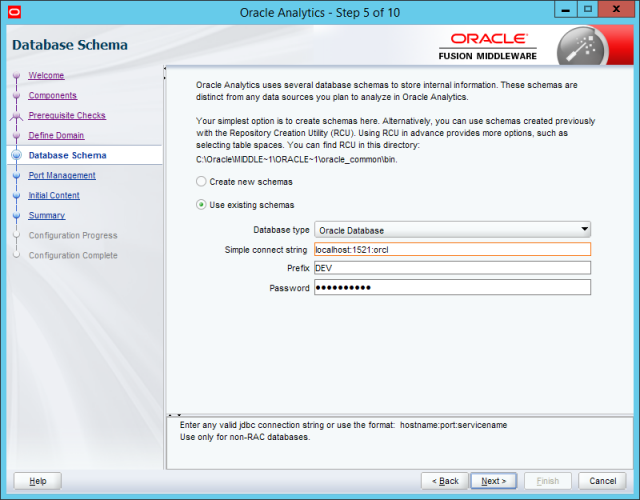
- DB SID: orcl
- DB Global Name: orcl
- Listener Port: 1521
- SYS Password: Oracle_123
- ORACLE_HOME: C:\Oracle\Middleware\Oracle_Home
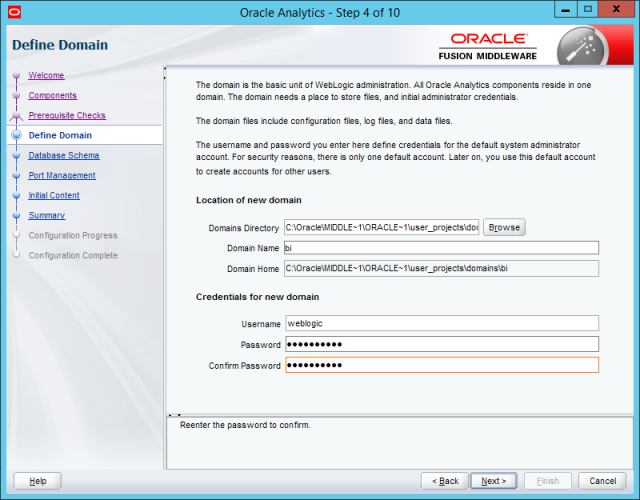
- Domains Directory: C:\Oracle\Middleware\Oracle_Home\user_projects\domains
- Domain Name: bi
- BI_PRODUCT_HOME: C:\Oracle\Middleware\Oracle_Home\bi\
- Weblogic password: Oracle_123
2. Download the Binaries
- Java Developers Kit 8
- Oracle WebLogic Server 12c (12.2.1.4) Generic – Download the file “Fusion Middleware Infrastructure Installer (1.5 GB)”
- Oracle Analytics Server 2025 Windows
3. Installation
We shall be doing a standard installation
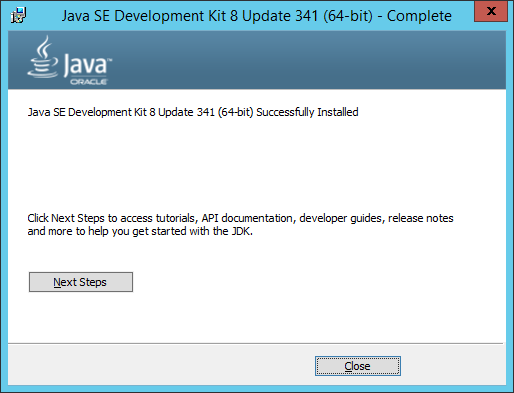
Setup Java Development Kit 8_341
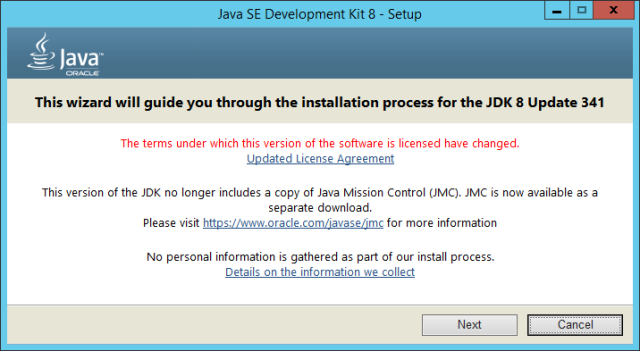
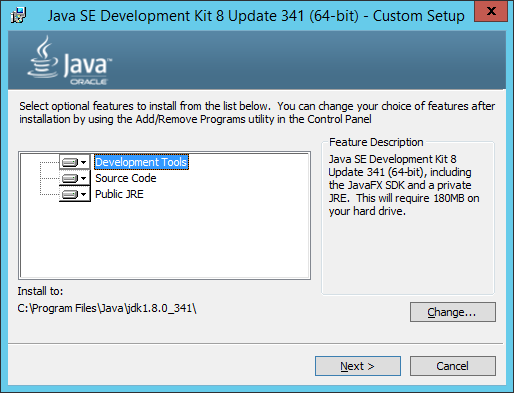
Change installation directory to: C:\Java\jdk1.8.0_341\
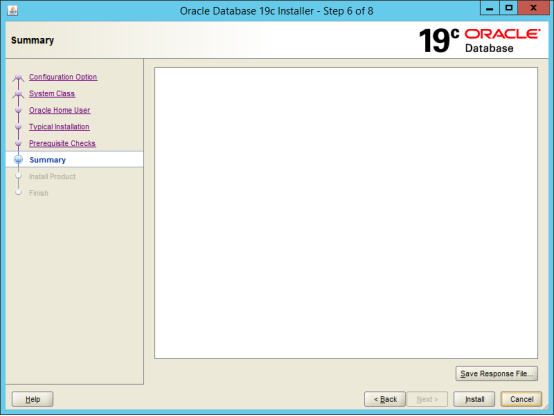
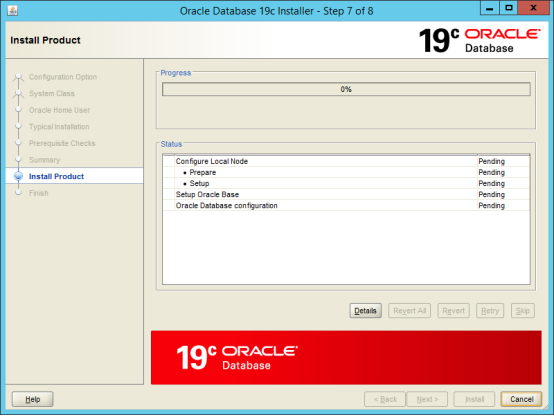
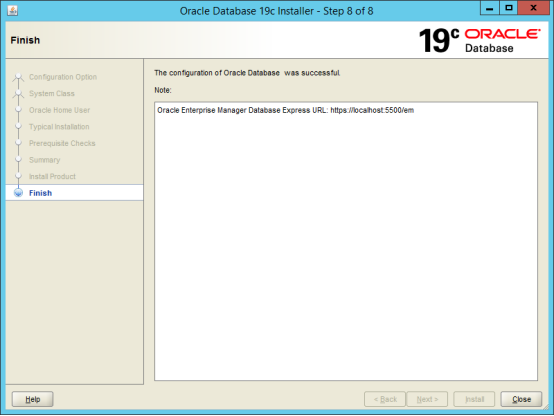
Setup Oracle Database 19c
Run: C:\sources\WINDOWS.X64_193000_db_home\setup.exe (run as administrator)
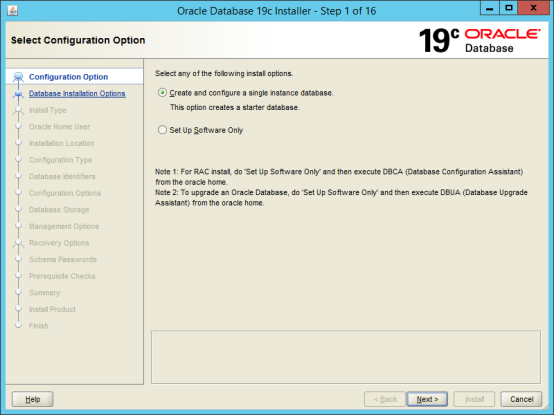
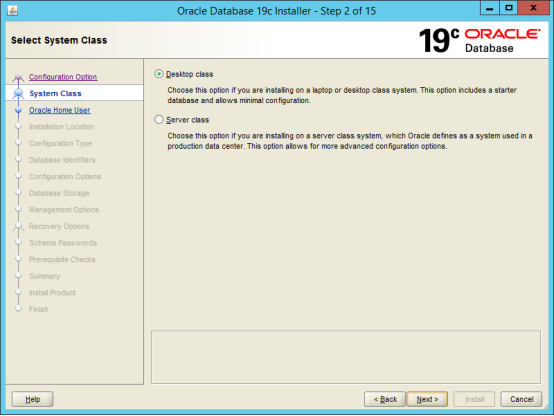
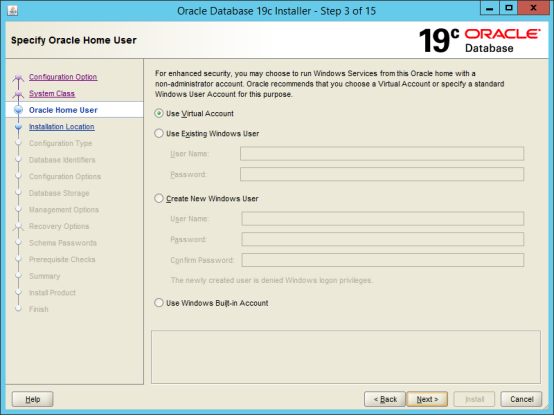
- Oracle Base: C:\sources\WINDOWS.X64_193000_db_home
- Global db name: orcl
- Sid name: orcl
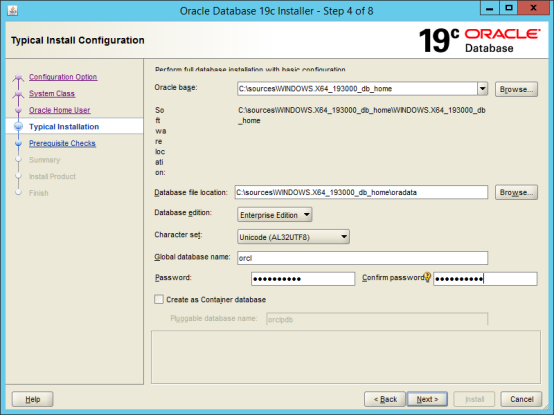
- Password: Oracle_123
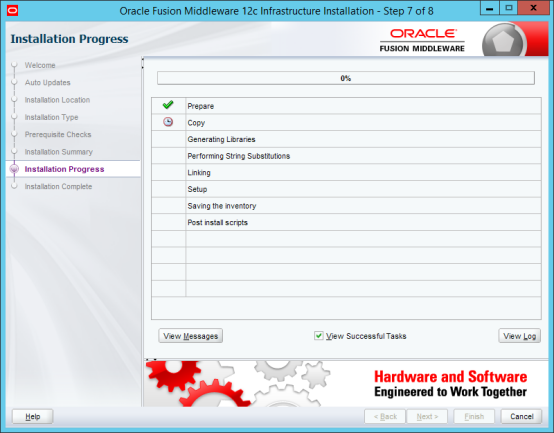
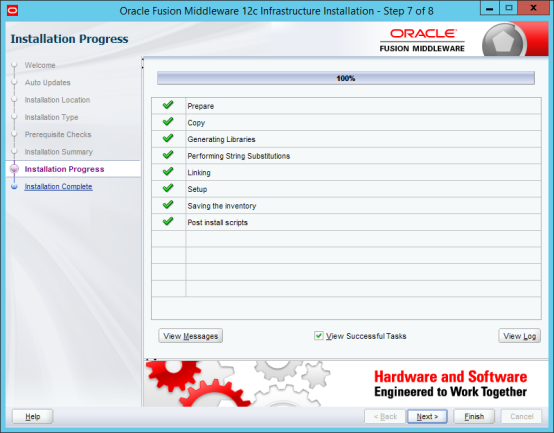
Install Oracle Fusion Middleware
Using JDK home:
Cd C:\Java\jdk1.8.0_341\bin

Java -jar C:\sources\fmw_12.2.1.4.0_infrastructure_Disk1_1of1\fmw_12.2.1.4.0_infrastructure.jar
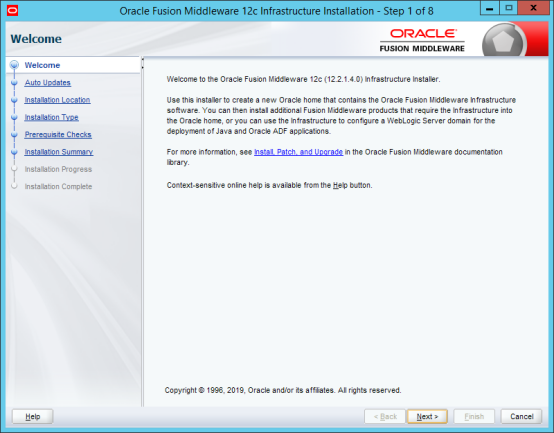
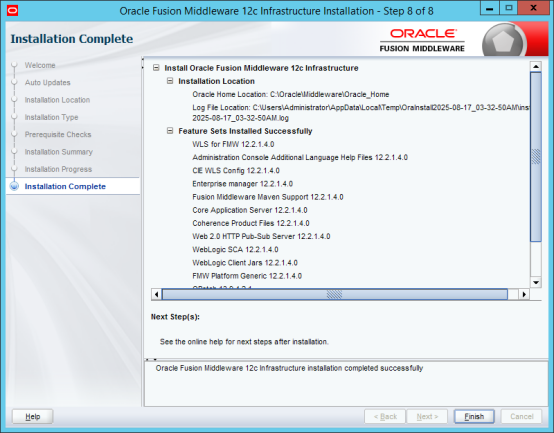
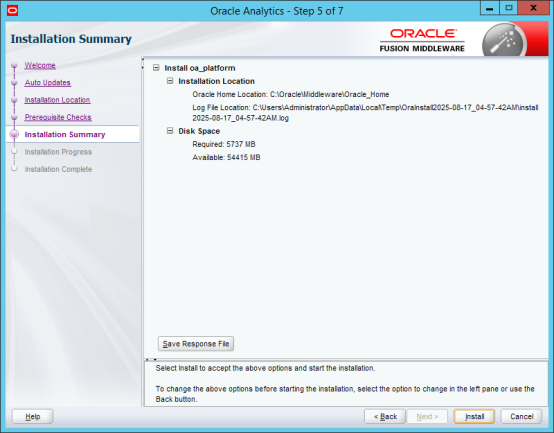
ORACLE HOME: C:\Oracle\Middleware\Oracle_Home
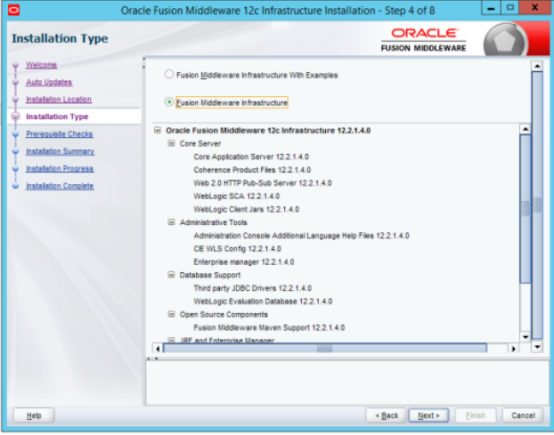
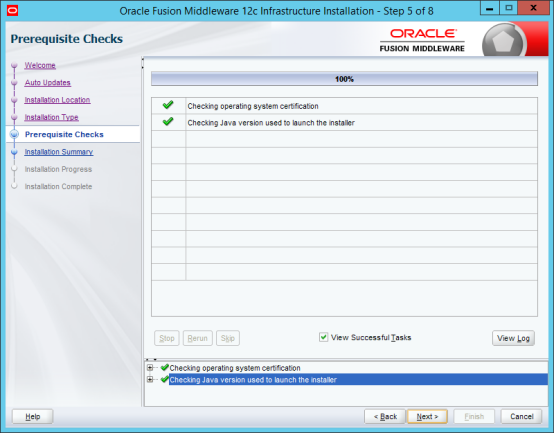
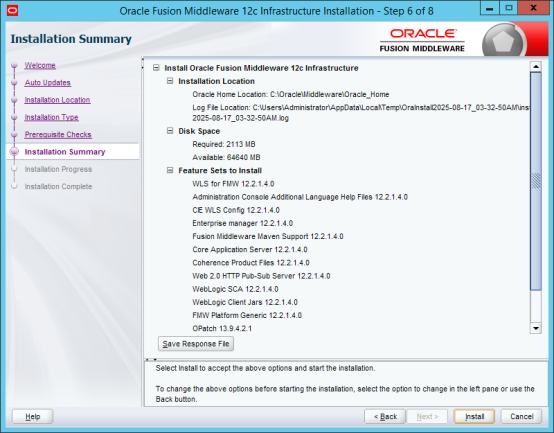
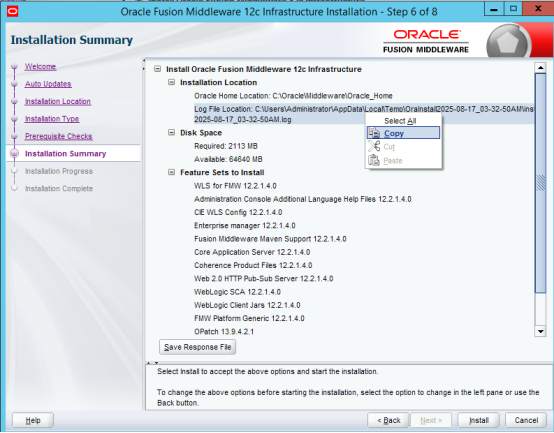
On Windows operating systems, the installer writes log files to the Oracle_Inventory_Location\logs directory.
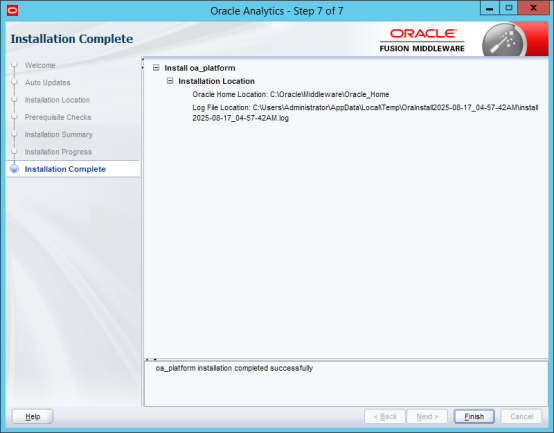
In the workshop virtual image: C:\Users\Administrator\AppData\Local\Temp\OraInstall2025-08-17_03-32-50AM\install2025-08-17_03-32-50AM.log
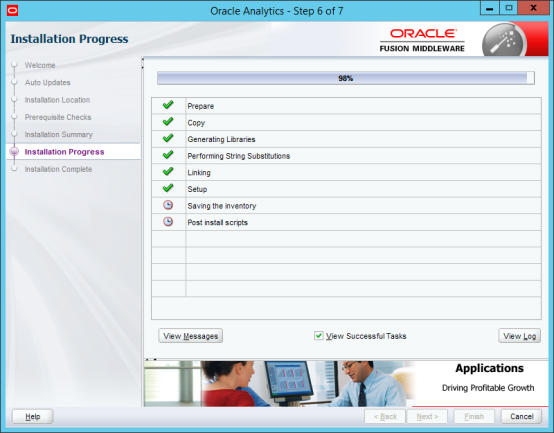
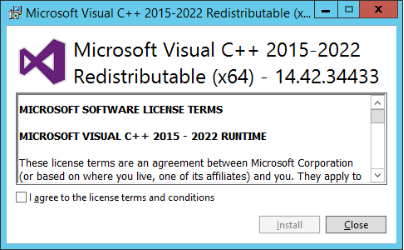
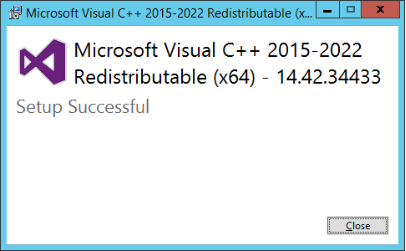
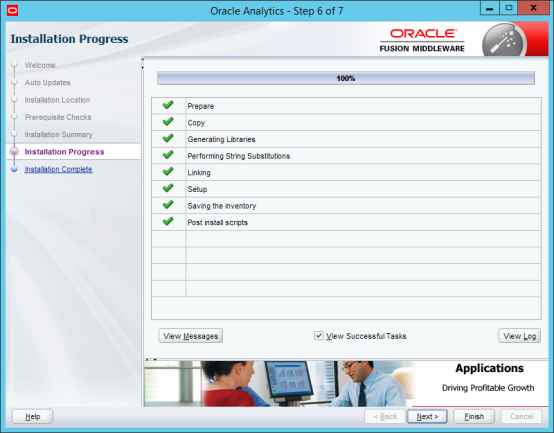
Install Oracle Analytics Server
Cd C:\Java\jdk1.8.0_341\bin

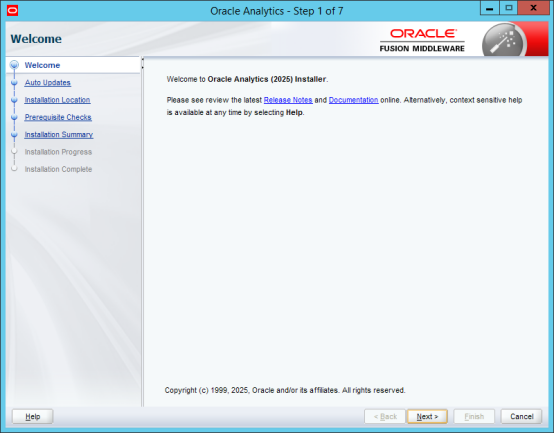
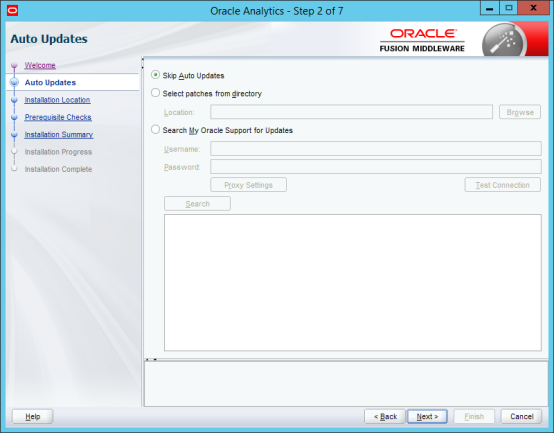
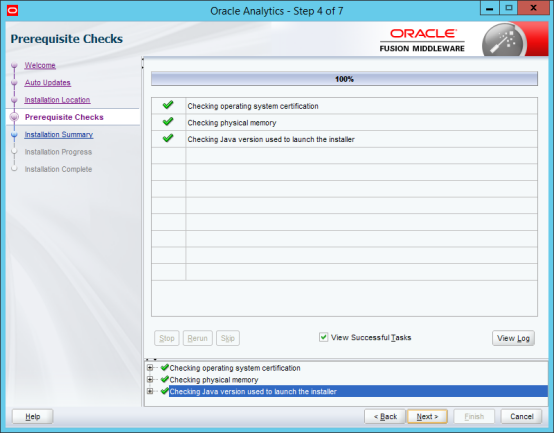
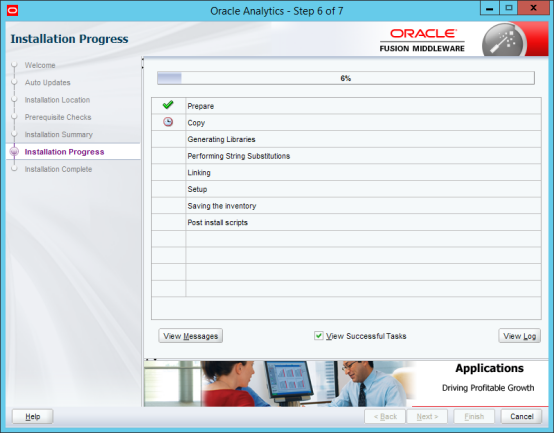
java -jar C:\sources\OAS_25\Server\V1048326-01\Oracle_Analytics_Server_2025_Windows.jar
4. Configuration
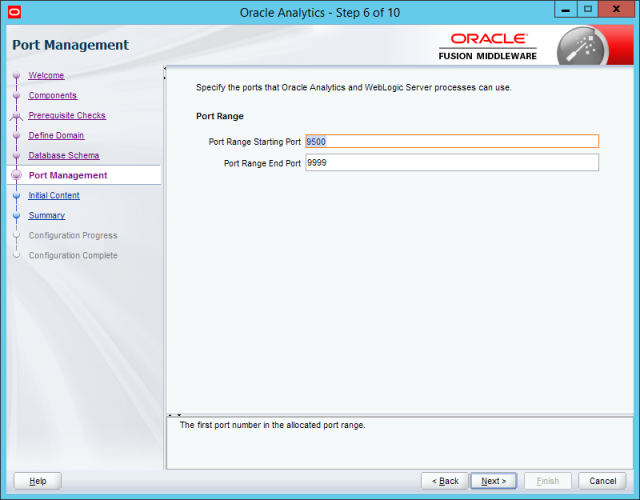
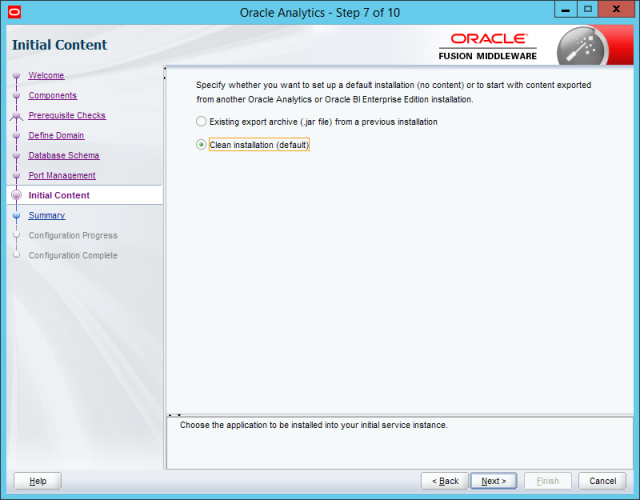
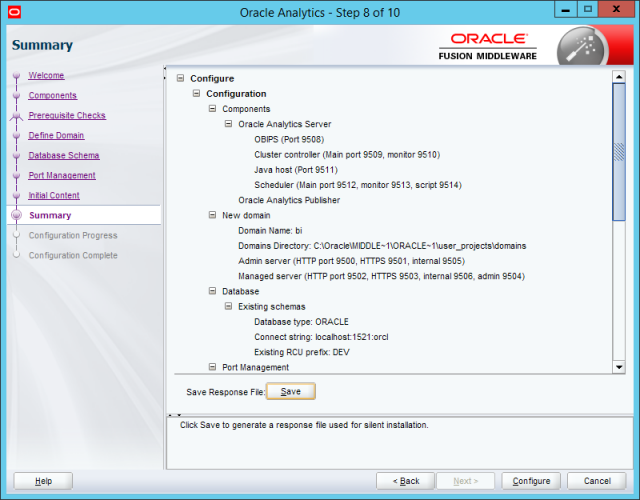
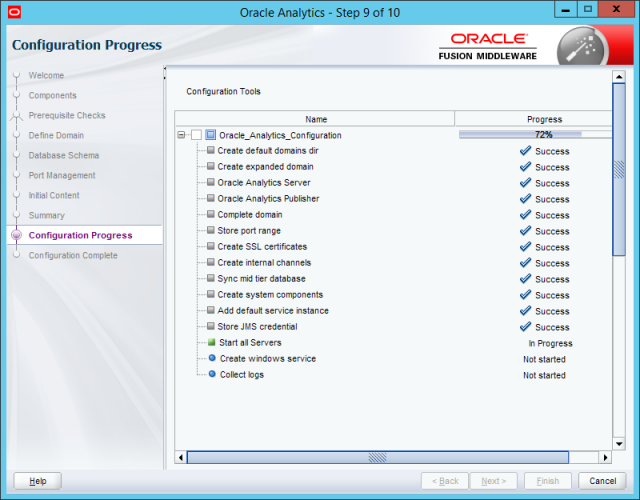
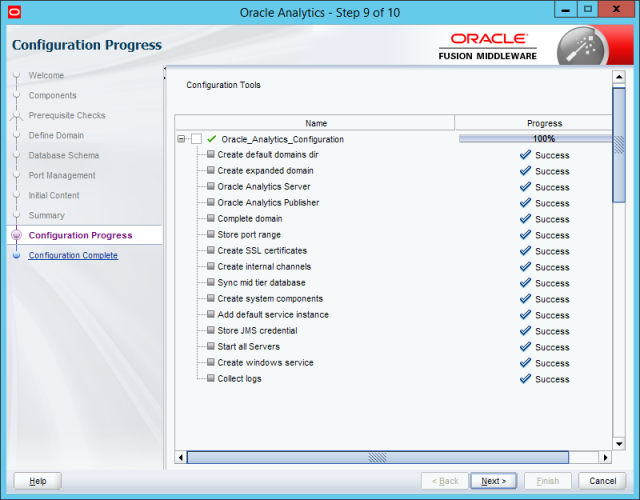
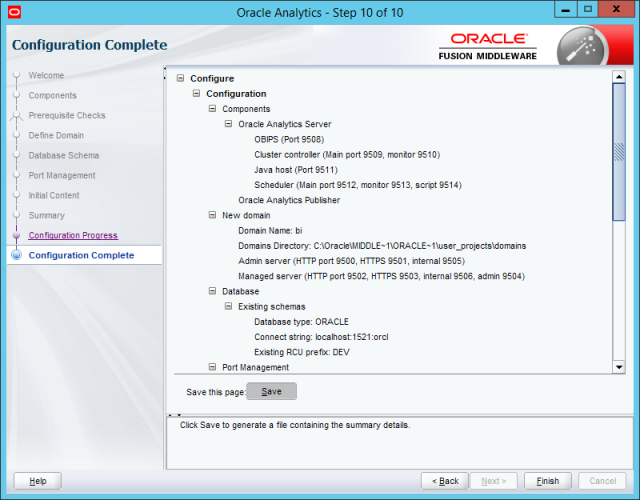
The Configuration Assistant is a multi-functional utility that helps you to create database schemas, specify a port range, create system components, and start the application servers in addition to configuring the standard topology.
Oracle strongly recommends that you use the Configuration Assistant to configure the Oracle Analytics Server domain.
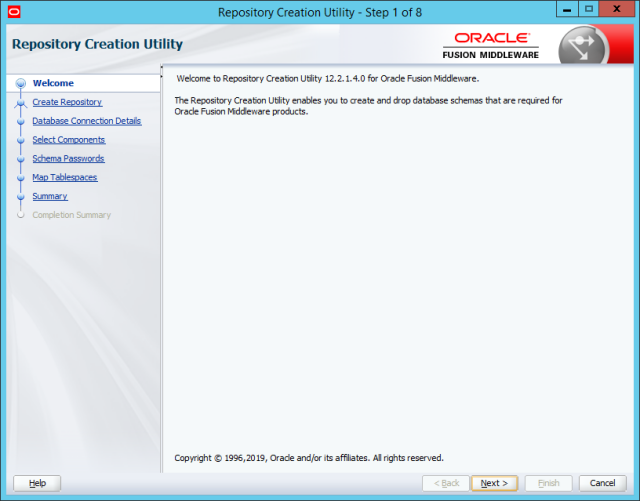
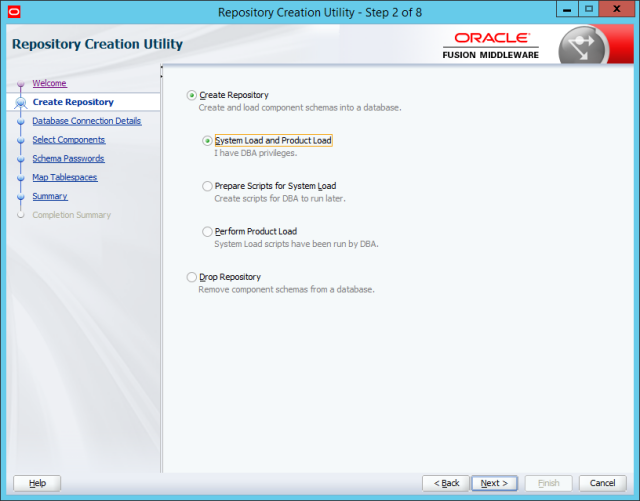
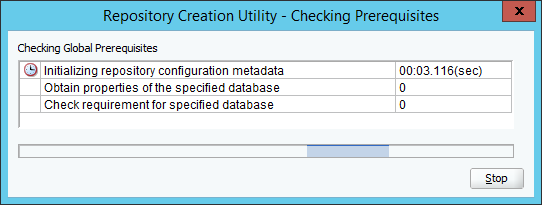
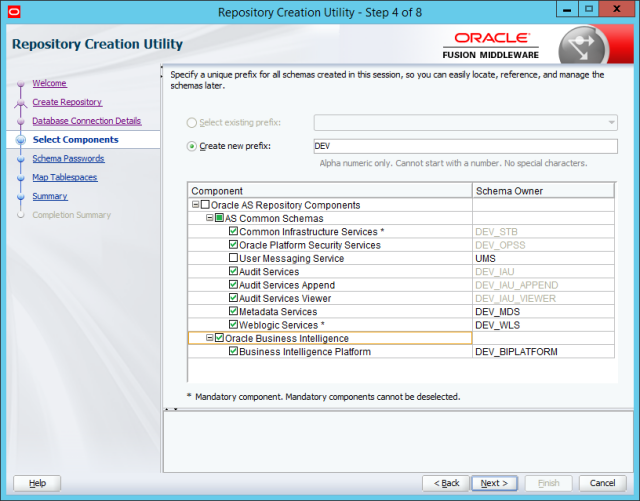
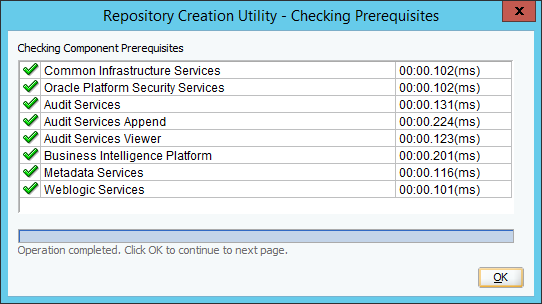
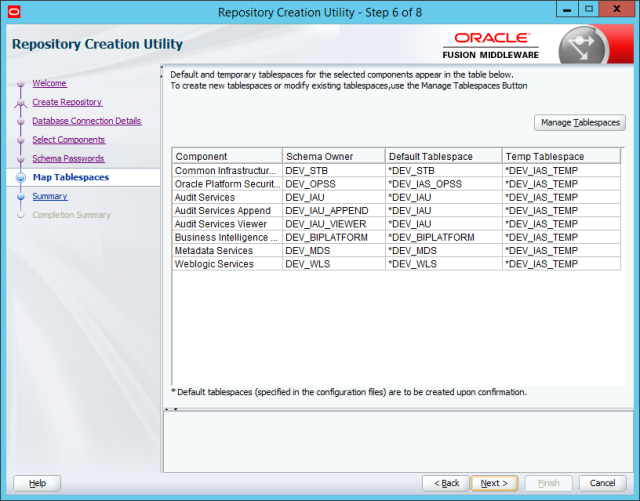
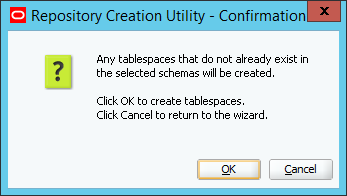
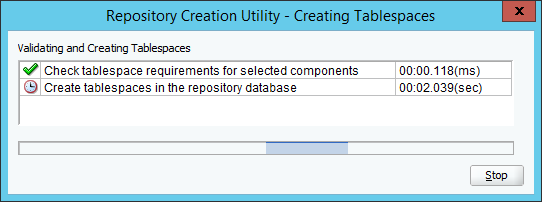
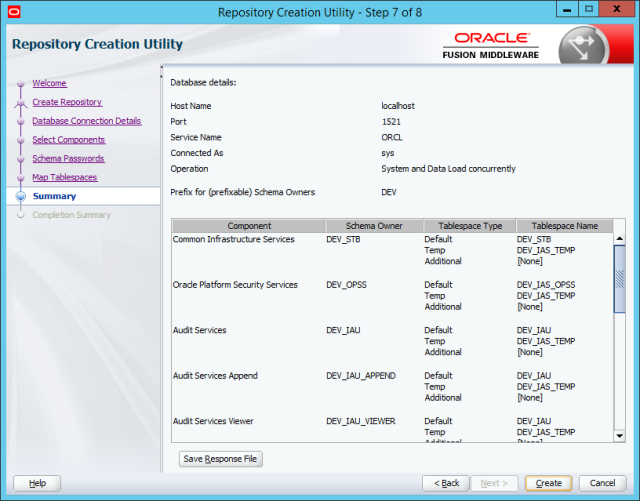
Starting the Repository Creation Utility (RCU)
set JAVA_HOME=C:\home\Oracle\Java\jdk1.8.0

Cd C:\Oracle\Middleware\Oracle_Home\oracle_common\bin

rcu.bat
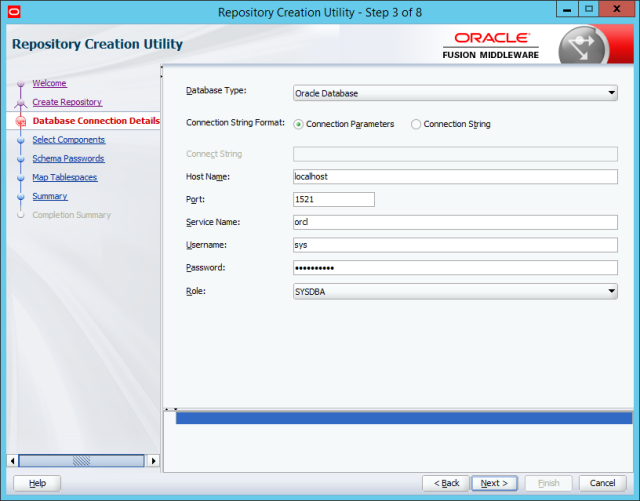
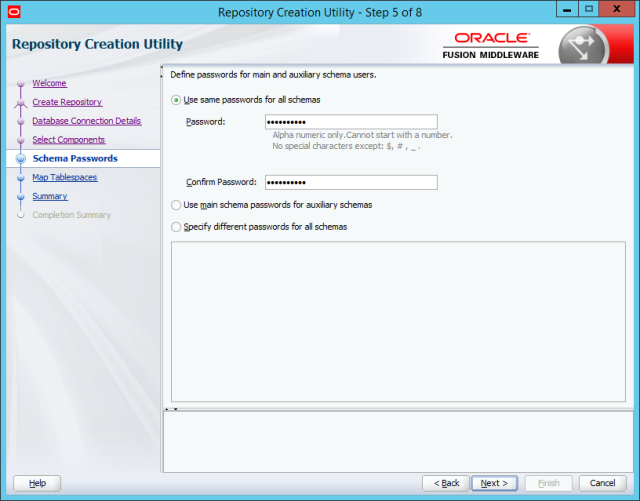
Password : Oracle_123
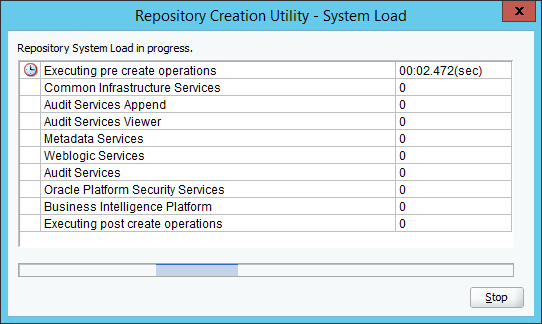
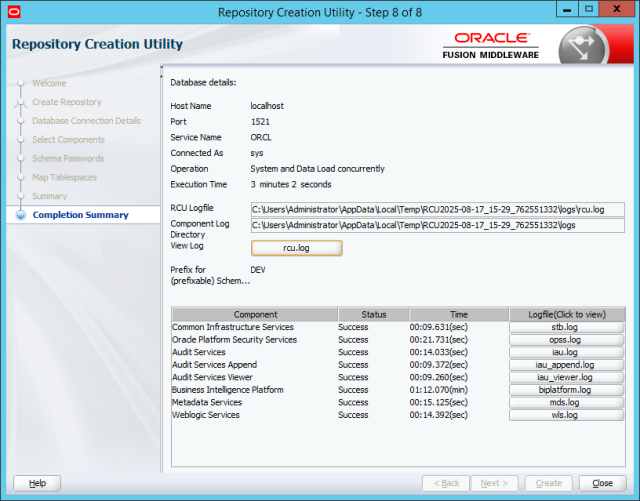
Configuration Script Run
Set JAVA_HOME = C:\Program Files\Java\jre1.8.0_341\bin

ORACLE_HOME\bi\bin\config.cmd

C:\Oracle\Middleware\Oracle_Home\bi\bin\config.cmd
Entry Points
- WebLogic Console: http://192.168.21.147:9500/console
- Fusion Middleware Control: http://192.168.21.147:9500/em
- Publisher: http://192.168.21.147:9502/xmlpserver
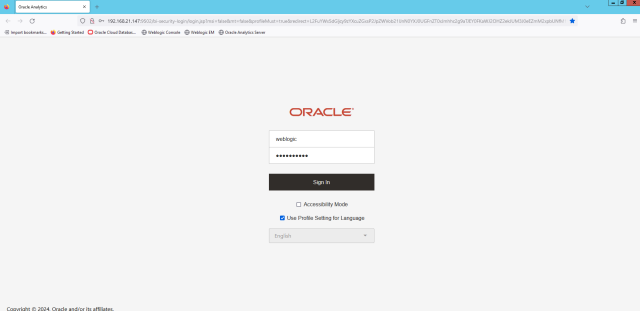
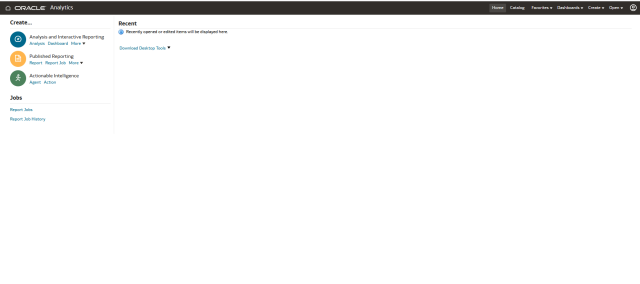
- Analytics: http://192.168.21.147:9502/analytics
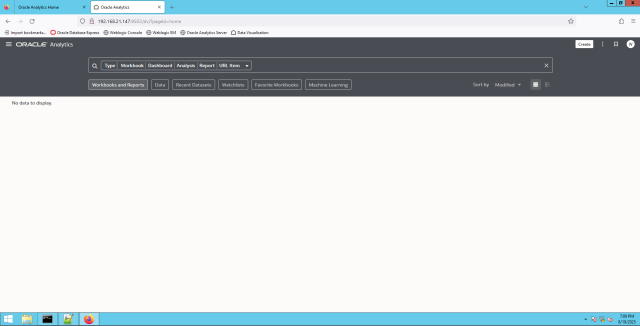
- Data Visualization: http://192.168.21.147:9502/dv
For Future Reference
System Startup
Start Oracle Analytics Server System:
C:\Oracle\Middleware\Oracle_Home\user_projects\domains\bi\bitools\bin\start.cmd
C:\Oracle\Middleware\Oracle_Home\bi\bin\config.cmd
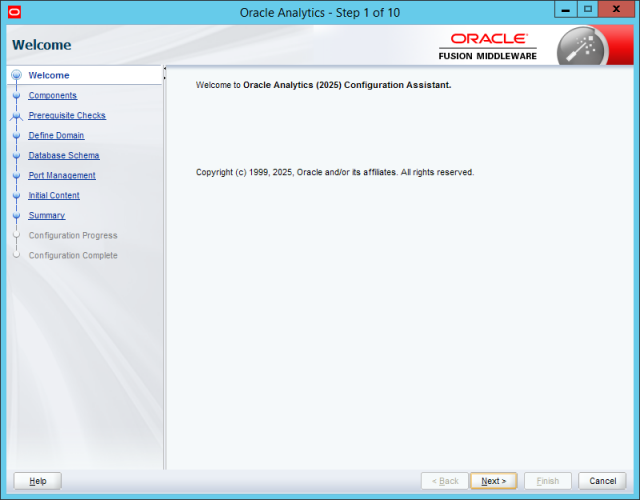
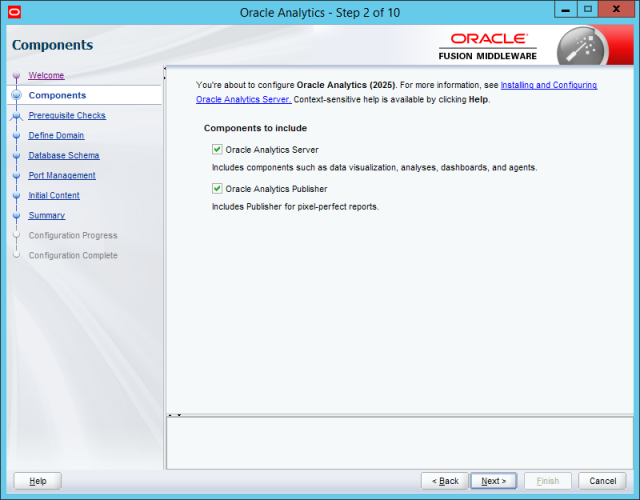
Entry points
WebLogic Console
http://192.168.21.147:9500/console
Fusion Middleware Control
Publisher
http://192.168.21.147:9502/xmlpserver
Analytics
http://192.168.21.147:9502/analytics
Data Visualization
Oracle Analytics Server Login :
Data Visualization :
FAQ
1. Which operating systems are supported for Oracle Analytics Server 2025?
Currently, Oracle Analytics Server is supported only on Linux and Windows Server platforms. You must consult the Oracle Certification Matrix to ensure your specific OS version is compatible before starting the installation.
2. What version of Java is required for this installation?
This setup requires Java Development Kit (JDK) 8, specifically version 8_341 or later as demonstrated in the workshop. You must set the JAVA_HOME environment variable to point to this directory for all subsequent installation steps.
3. Which Oracle Database version is recommended for the repository?
Oracle Enterprise 19c is the recommended database for hosting the schemas required by the server. It ensures stable performance and full compatibility with the Fusion Middleware 12.2.1.4.0 infrastructure.
4. What is the role of the Repository Creation Utility (RCU)?
The RCU is a vital tool used to create the necessary database schemas and tablespaces required by Oracle Analytics. It must be executed before the final domain configuration to ensure the metadata repository is ready.
5. How do I start the Oracle Analytics Server installation on Windows?
You must navigate to your JDK bin directory and run the command java -jar followed by the path to the OAS 2025 .jar installer file. It is recommended to run this command with administrative privileges to avoid permission issues.
6. Where can I find the installation log files if an error occurs?
On Windows, the installer typically writes logs to the Oracle_Inventory_Location\logs directory. You can also find specific session logs in the AppData\Local\Temp folder under the OraInstall prefix.
7. What is the purpose of the Configuration Assistant?
The Configuration Assistant is a multi-functional utility that creates the WebLogic domain, specifies port ranges, and sets up system components. Oracle strongly recommends using this assistant to ensure the standard topology is configured correctly.
8. How can I access the Analytics and Data Visualization interfaces?
Once the server is running, you can access these services via specific URLs, typically on port 9502 (e.g., /analytics and /dv). These entry points allow users to create reports and perform advanced data analysis.
9. What is the command to start the entire OAS system?
To start the system, execute the start.cmd script located in the user_projects\domains\bi\bitools\bin\ directory. This script initializes the WebLogic administration server, managed servers, and all BI system components.
10. Do I need Oracle Fusion Middleware to run OAS 2025?
Yes, Oracle Analytics Server 2025 requires the Fusion Middleware Infrastructure 12.2.1.4.0 as a foundational component. You must install the Infrastructure binaries before you can proceed with the OAS-specific software installation.
For future reference :
System Startup :
Start Oracle Analytics Server System
C:\Oracle\Middleware\Oracle_Home\user_projects\domains\bi\bitools\bin\start.cmd